All products featured are independently chosen by us. However, SoundGuys may receive a commission on orders placed through its retail links. See our ethics statement.
This hidden iPhone setting improved the sound of my AirPods Pro
Apple doesn’t offer a real EQ for AirPods Pro, but this hidden iPhone setting lets you tweak the sound in seconds.
By
•
Feb 3, 2026 — 3:16 PM ET
•
•
It’s no secret that Apple still doesn’t offer a traditional EQ for the AirPods Pro, which can be frustrating if you’re not fully satisfied with how they sound. Whether you’re using AirPods Pro 2 or AirPods Pro 3, you won’t find any sliders for bass or treble, and there’s no easy way to fine-tune the sound like you can with many other earbuds.
That said, there is one built-in iPhone setting that lets you subtly tweak the audio on supported Apple headphones, including the AirPods Pro, without downloading a third-party app or making any permanent changes. It’s not a replacement for a real equalizer by any means, but it’s free, reversible, and something you can try right now in under a minute.
Do you think AirPods Pro should have a built-in EQ?
383 votes
How to enable Headphone Accommodations
Buried in your iOS Accessibility settings is a feature Apple calls Headphone Accommodations, which applies tonal changes to your AirPods Pro’s sound. You can choose between Balanced Tone, Vocal Range, or Brightness, then control how strongly that adjustment is applied.
It works with both AirPods Pro 2 and AirPods Pro 3 and only takes a minute to set up. Make sure your AirPods Pro are connected before you dive in.
Open Settings
Go to Accessibility
Tap AirPods
Select your AirPods Pro (or whatever you have them named)
Tap iPhone Audio & Visual Settings
Select Headphone Accommodations, thentoggle iton
Choose Balanced Tone, Vocal Range, or Brightness, then adjust the intensity slider to taste
Nothing here is permanent. You can turn this setting off at any time, switch between modes, or adjust the intensity depending on what you’re listening to.
What Headphone Accommodations actually sound like
Headphone Accommodation settings on the AirPods Pro 3.
Headphone Accommodations don’t completely overhaul the sound of the AirPods Pro, but each mode nudges the tuning in a different direction that some listeners may prefer. When you turn Headphone Accommodations on for the first time, iOS automatically enables Balanced Tone by default, which makes it a good starting point before experimenting with other options. In my testing, this initial setting introduces a subtle increase in treble strength right away, even before adjusting the intensity slider.
Personally, I’ve been using Balanced Tone set to Slight on my AirPods Pro 3, and I’ve been happy with the change. At this setting, the added treble strength makes elements like cymbals easier to pick out and helps small production details, such as reverb tails, stand out more clearly without pushing the sound into feeling bright.
Here’s a quick breakdown of the changes each setting makes:
Balanced Tone
Best overall option. Adds treble strength while staying closest to the default tuning.
Balanced Tone stays closest to the AirPods Pro 3 default tuning, with varying degrees of treble emphasis depending on the intensity setting. Even at lower settings, it increases treble strength compared to stock. At the Slight level, the change is subtle and easy to live with, making elements like cymbal work and reverb tails easier to pick out. Moving up to Moderate further increases treble strength and can improve vocal presence. At Strong, the treble emphasis becomes pronounced enough to sound shrill to my ears, though it may appeal if you want to hear as much high-frequency detail as possible.
Vocal Range
Best for speech and dialogue. Boosts midrange strength, with tradeoffs for music.
Vocal Range prioritizes voices by increasing midrange strength, while also adding some treble strength as the intensity increases. At the Slight setting, this can improve vocal intelligibility for speech-heavy content, such as podcasts. Moving up to Moderate adds more treble strength than I found comfortable for most music. At Strong, bass strength drops off significantly, and overall fullness is reduced, making this mode less suitable for music but still useful for podcasts or dialogue-focused listening.
Brightness
Strong treble emphasis with limited headroom. Easy to overdo.
Brightness is a treble-forward option. It increases treble strength across the entire range, and at low intensity can add a reasonable amount of high-frequency emphasis. Higher intensity settings make the sound feel bright very quickly, and pushing it too far can result in a shrill presentation, depending on the track and listening volume. This mode is best used cautiously.
If you want more guidance, choosing Custom Audio Setup walks you through a short series of A/B listening samples. Apple plays different versions of the same audio and lets you decide which one sounds better, either by manually selecting options or by letting the setup process guide you toward a preset.
Should you use this on the AirPods Pro?
Harley Maranan / SoundGuys
Sound measurements help contextualize how small tuning changes affect the AirPods Pro 3.
If you’re mostly happy with the sound of your AirPods Pro but wish you could make a small adjustment, Headphone Accommodations are absolutely worth trying. While it’s not a true EQ and won’t let you precisely shape bass or treble, it can shift the overall balance enough to improve treble strength or midrange strength, depending on what you listen to.
Since nothing here is permanent, there’s little downside to experimenting. Spend a minute toggling it on, keep the intensity low, and see if one of the modes better matches what you want from your AirPods Pro. If it doesn’t, you can turn it off just as quickly and go back to the default sound.
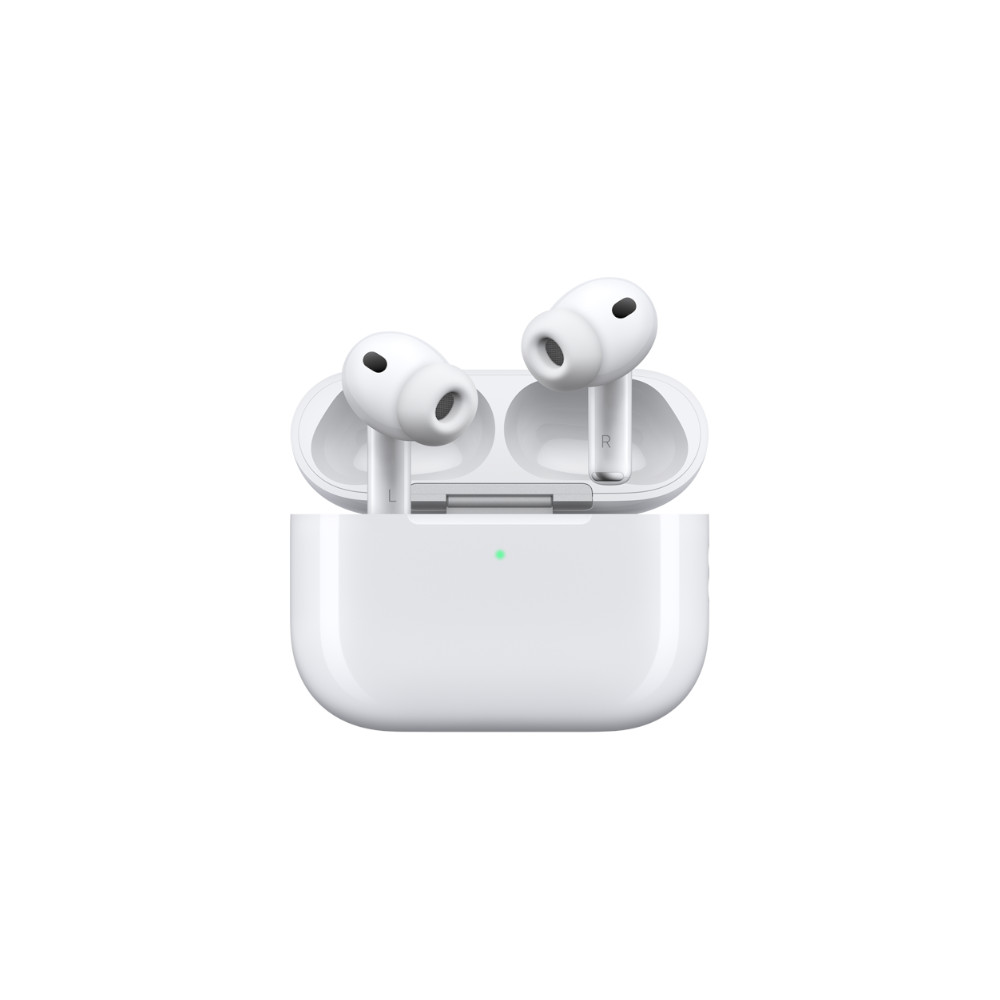
Excellent ANC • Live Translation • Heart rate sensor
MSRP: $249.00
Adaptive audio and enhanced ANC.
The Apple AirPods Pro 3 are a solid update to the Apple wireless earbuds lineup. Improved ANC, IP57 ratings, plus heart rate sensor and fitness tracking built in. There's even a hearing aid mode, and improved spatial audio.